-->
Showing posts with label Windows. Show all posts

Hiding and Un-Hiding Files and Folders


Windows provides features like hiding the folders, etc. One of the major benefits of hiding the folder is that it’s hidden from the normal functions like copy/cut. It can also prove helpful in many cases when you don't want to expose some important file, in case, some child in your house too uses the same computer as you.

The methods of hiding a file is very simple and un-hiding it too is as simple.


To hide:

      Right click the file/folder and click on the properties button.  


2.       After you click the properties button, click on the checkbox near the option “Hidden”. Then another dialog box will prompt up asking for the options stated in the picture below. Click on the preferred option and select ‘OK’ and then Apply the changes.


To Unhide

1.       Go to control panel and click on the icon ‘Folder Options’. (or) Go into any folder and then click the key combination ‘Alt+T’, which will show the Tools menu and then select the option ‘Folder Options’.


2.       Then in the ‘View’ tab, check the option ‘Show hidden files, folders and drives’.
3.       Then Apply the changes and press ‘OK’.

These are the methods of hiding and un-hiding a file/folder. Please leave back your comments if you need to hide or un-hide something dangerous! ;)

Read more >>

Removing Windows Genuine Notification

It is seriously very annoying when you have a pirated version of windows and Microsoft finds it out during update and leaves behind the so called, 'Windows Genuine Notification'.
Well. There are so many threads online which tells you to delete some keys in the registry and finally end you up in some registry related problems, where you computer fails to startup!

So, why take up something which you may later regret for?

Here is a software by Hazar, which will let you overcome this annoying notification by windows within a few seconds and run your PC 'peacefully'!


Download it from here

After downloading, just open the file and click the button "Remove WAT". That is it. You are done. It will take some time depending on your system configuration.
After this software finishes removing the particular keys, your system would need a restart that would be done by this wonderful software. Enjoy!

And please do leave behind your VALUABLE comments! :)
Read more >>

Making a Bootable USB Disk

  • Open command prompt as administrator.
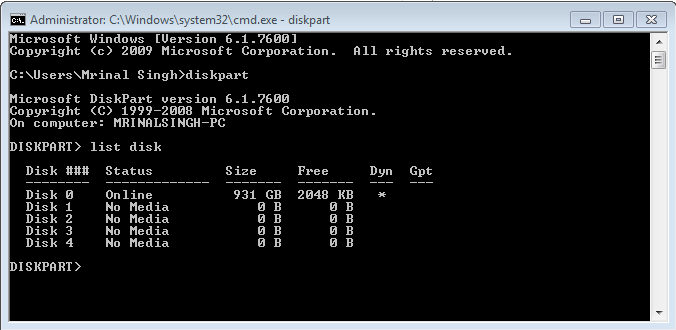
  • Type DISKPART
  • Type LIST DISK


  • Select your usb device by typing (eg.: Disk 1) :
  • SELECT DISK 1
  • CLEAN
  • CREATE PARTITION PRIMARY
  • SELECT PARTITION 1
  • ACTIVE
  • FORMAT FS=NTFS
    Wait for some time till the process completes
  • ASSIGN
  • EXIT
    Minimise the command prompt as u may need it l8r..
  • Insert the win 7 disk.
  • Assuming that your CD drive (or the file location) is “F” and Your USB drive is “I” 
  • Type F:/(the folder name) in the Command Prompt(CP)
  • CD BOOT
  • BOOTSECT.EXE/NT60 I:
    Now copy all the files of win 7(the windows cd files) on to the USB drive.
    That’s it…
Read more >>

Speed up your Windows 7 / Windows PC instantly

Sometimes, when you are working for so long on the computer, it slowly starts slowing down and at a point you don't have any other option rather than restarting it. No more! I will tell you a very simple trick which will help you free the RAM to the max extent without causing any unstability. The process is very simple where you have to create a text file and then save it as a VBS (Virtual Basic Scripting) file and then running it.

Follow these steps to do this:
1. Open Notepad and type the following
FREEMEM=SPACE(640000)
Click to enlarge

2. Save the file as .VBS 


Note: Don't save it as something.vbs.txt ! :P
Read more >>